Many of us struggle because we can’t find a reliable, high-quality free screen recording tool. This becomes a real problem, especially when we want to create video tutorials, record lessons, or capture on-screen workflows smoothly.
In that situation, FastStone Screen Recording Tool can easily be one of the best choices you can make. From my personal experience, FastStone offers an excellent balance between performance and simplicity.
Although it is not entirely free and comes with a one-month trial period, I’m sharing a simple trick that allows you to use it completely for free.
Why I Recommend FastStone for Screen Capture
There are a few solid reasons why this tool stands out:
- Lightweight Software: It runs smoothly even on low-end or older PCs without slowing down your system.
- Very Simple User Interface: You don’t need a learning curve; everything is straightforward and beginner-friendly.
- Paid Tool without Immediate Cost: Although FastStone is technically a paid tool, I found that with some smart planning, it’s possible to continue using it effectively without immediate cost.
- Perfect for Tutorials: Ideal for recording software walkthroughs, online classes, and how-to videos with clear output quality.
Quick Step-by-Step Overview
Let me show you some simple steps to activate this software within 5 minutes.
Step-1: Download the Software
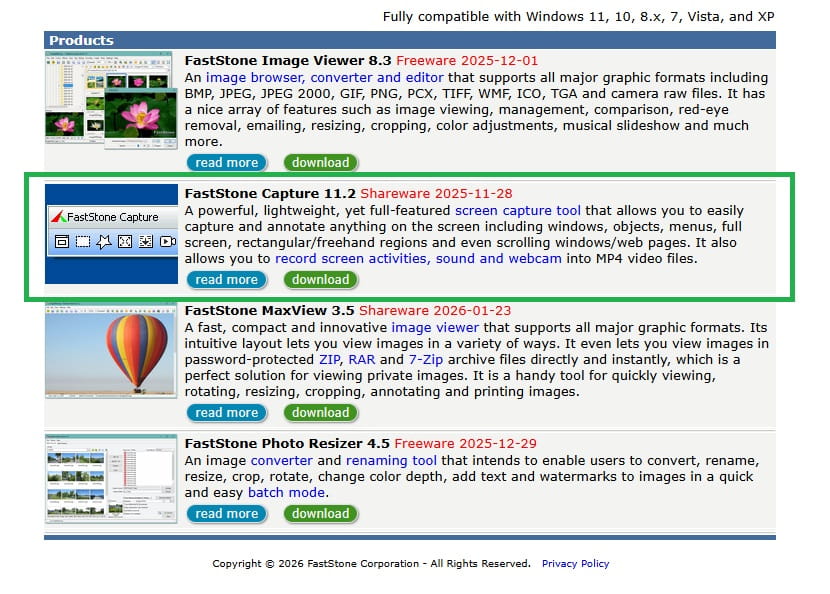
Visit the official FastStone website. You’ll find several tools there, but make sure to download FastStone Capture, which is their dedicated screen recording and screen capture software.
Step-2: Collect the License Key
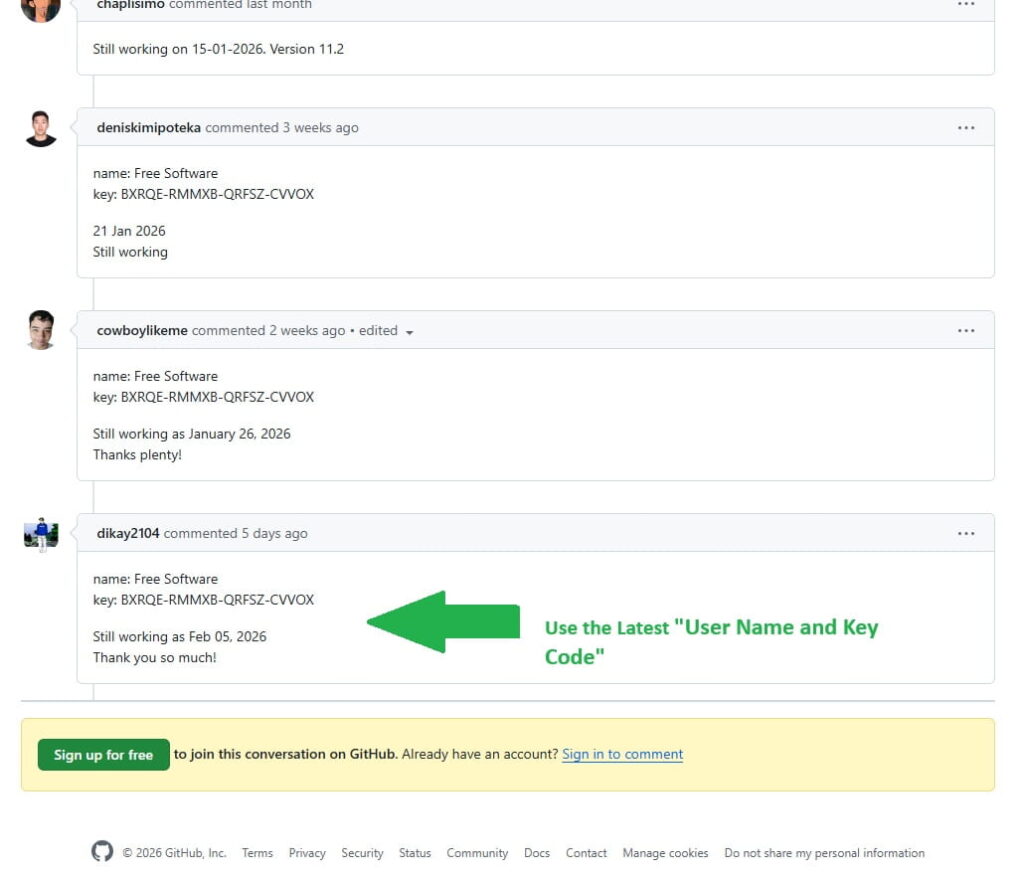
Go to this post on GitHub and take the username and password of the last person who shared the paid username and password, and enter it in the corresponding field of your FastStone Capture. Only then will your tool become paid.
Step-3: Configure the Settings
Install the software and configure the recording settings based on your needs – such as full screen, selected area, microphone input, and system audio. Within minutes, you’ll be ready to start recording professional-looking tutorials.