
A few days ago, I noticed that one of my client’s Amazon affiliate sites had suddenly been de-indexed. After running a scan in Bing Webmaster Tools, I found that the root URL was returning HTTP 400–499 errors. I immediately contacted both the hosting company and the Bing Webmaster team directly, and thankfully, the issue was resolved within about 24 hours.
This type of problem can happen to any site at any time, so there’s absolutely no room to take it lightly. In this post, I’ll break things down very briefly and practically, so if you ever face a Bing-related issue like this, you can resolve it quickly and confidently.
For Free Training and Support: Join Our Social Platforms
Facebook Page: Sarkar State Official Facebook Page
Facebook Group: Sarkar State – Official Facebook Group
YouTube Channel: Sarkar State – Official YouTube Channel
Want to Start Amazon Affiliate Marketing? Join My Step-by-Step Course: Amazon Affiliate Marketing Course
What are HTTP 400–499 Errors?
HTTP 400–499 errors include various client-side errors such as 400, 401, 403, 404, and 405. These errors are usually related to a website’s overall internal structure and, in many cases, server-level or hosting-related issues. In simple terms, they indicate that search engine bots are unable to properly access or process certain URLs on your site.
From my experience, Bing treats 400-499 errors much more strictly than Google, and if these issues aren’t fixed quickly, full site de-indexing is a very common outcome.
Why Do HTTP 400–499 Errors Occur?
Based on my analysis and real-world experience, one of the most common causes is excessive Bing bot crawling. In many cases, the hosting company’s firewall mistakenly flags Bingbot activity as spam or abnormal behavior. As a result, Bingbot is blocked and can no longer crawl one or multiple specific URLs or sometimes the entire site.
If this issue affects the root URL, Bing often responds by de-indexing the whole site. That’s exactly what happened in my case.
There are also several other possible reasons, including:
- Broken internal or external links
- Incorrect canonical URLs
- Deleting pages without proper redirects
- Cloudflare or WAF (Web Application Firewall) blocks
All of these signals can prevent Bing from crawling your site properly and may eventually lead to serious indexing issues if not addressed quickly.
Let’s walk through this step by step and see exactly how I solved the problem based on my real-world experience.
Step-1: Finding the Root Cause Using Bing’s Site Scanner
First, I scan the root URL or root domain URL using Bing Webmaster Tools. In Bing Webmaster Tools, you’ll find the Site Scan option on the left-hand menu, toward the lower section. Simply click on it and follow the on-screen steps to start the scan.

The scan results are not instant. Depending on the site size and server response, it can take anywhere from a few minutes to 1, 3, 10, 20, or even up to 24 hours. There’s no fixed timeline, so patience is important here.
After about 10–15 minutes, I received the scan results, where I could see a specific error. After clicking on that error, a detailed explanation of the issue was displayed.
What is the issue about?
These pages have 400-499 http status code. Ensuring http status 200 might help improve SERP performance and gain user traffic.
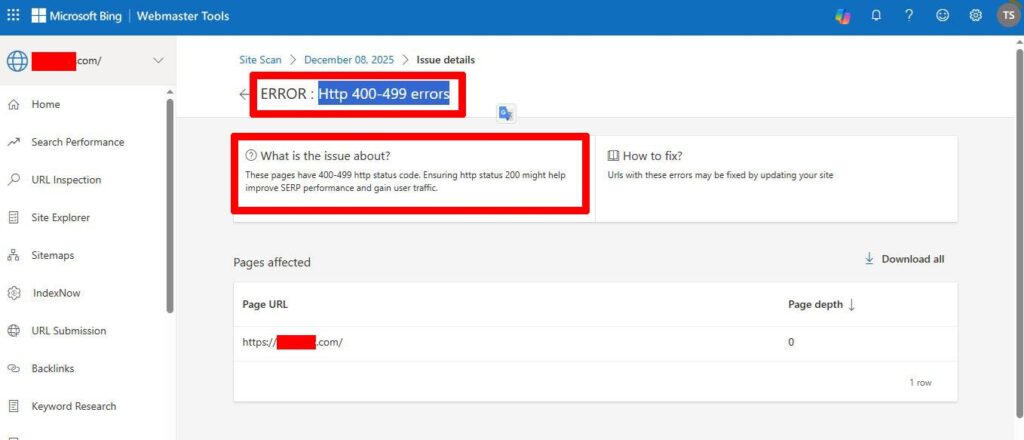
Note: If you rely on Bing traffic, I strongly recommend running a full site scan at least once a month. This helps you identify potential issues early, before they turn into serious indexing problems.
Step-2: Contact the Hosting Company
When the scan results showed HTTP 400–499 errors, I immediately contacted the hosting company and explained that their firewall was likely blocking Bing’s crawling bots. They took some time to investigate and fix the issue, then asked me to recheck the site.
I did run another check, but since Bing Webmaster Tools often takes time to update site scan results, I didn’t wait there. Instead, I used a third-party tool to verify the issue, exactly as Bing had recommended in the scan report.
That third-party check showed an HTTP status 200, confirming that the problem had been successfully resolved on the server side.
Step-3: Contact Bing Webmaster Tools Support Team
After waiting a few hours without seeing any new scan report or signs of re-indexing, I reached out to the Bing Webmaster Tools support team via their support tool. I clearly explained that the HTTP 400–499 errors had already been fixed and requested them to re-index the site as soon as possible.
About 12 hours later, I received a response confirming that the issue had been resolved on their end and that the site would be indexed shortly. In reality, it took around 8 more hours after that email for the site to be fully re-indexed again.